

In case you missed these freebies:
Win $6k at my Vibe Code Hackathon! (signup)
If I had to make $1M from $0 (step by step)
How to use Gemini AI in Google Sheets (tutorial)
How I Code Profitable Apps SOLO (Feb 20 livestream)
Welcome to my…
Ultimate Claude Code FULL course!
From zero to hero; first time setup to 10X productivity.
We’ll walk through building your PERSONALIZED AI Marketing Officer with Claude Code.
You have an idea. You want to post to Twitter, LinkedIn, Instagram, and Facebook, each adapted for the platform, each with a visual, matching your brand voice. And you want it done in 30 seconds!
You’ll create 2 skills, a quality gate hook, brand voice guidelines, and a multi-platform publish pipeline utilizing parallel subagents.
Everything on your computer.
Everything tailored to YOUR WORKFLOW.
By the end, you’ll type 1 sentence and Claude will research your topic, draft a week of content, create visuals, show you the plan, wait for approval, and schedule everything to your socials.
Set aside 90 MINUTES to follow along.
Unlike other tutorials focusing on MCP or specific tools, here you’ll learn how to build repeatable frameworks, tailored to your preferences and workflows.
You’ll learn the fundamentals and be able to build ANYTHING.
If you haven’t installed Claude Code yet, follow this first.
Here is what we’ll build, step by step:
| Setup | Configure permissions, modes, context | Foundations |

| 1 | Create the `/post` skill | Skills | Verify pipeline end-to-end |

| 2 | Add per-platform brand voice | Skill iteration | Posts match your tone |

| 3 | Create a quality gate hook | Hooks | Automatic checks before every publish |

| 4 | Add multi-platform posting | Subagents | `/post “topic” all` -- 4 platforms |

| 5 | Create the `/plan-week` skill | Capstone | Full week of content & scheduled |

| 6 | Create CLAUDE.md | Project memory | Claude starts each session with context |
Claude Code Settings
Before we start, let’s talk about settings.
These are not hard/fast rules, but they are my preferences based on substantial lived usage/experience.
Permissions
As you use Claude Code, it will ask for permission to run many commands.
To avoid approving the same relatively safe commands over and over, paste this prompt into Claude Code:
add permissions to this claude code project to allow non-destructive bash commands: WebSearch, WebFetch, source, export, curl, jq, cat, ls, grep, echo, which, wc, file, pwd, mkdir, touch, head, tail, find, sort, tree, diff, node, npm, npx, git status, git diff, git log
Claude updates your `settings.local.json` where permissions live.
These are read-only or low-risk commands. Claude will still prompt you for commands that run code (`node`, `python3`, `npx`) or modify history (`git commit`) so you can review before approving.
Modes
Claude Code has permission modes that control how much autonomy Claude gets. I spend most of my time in Plan Mode or Ask Before Edits while Claude is planning.
I go back and forth on the plan -- a lot, probably 90% of my time. I read what Claude proposes, spar with it, request revisions, and only when the plan is finalized do I switch to Auto-Edit mode, then let Claude execute.
For this tutorial, that means:
when you run `/post` or `/plan-week` and Claude starts asking clarifying questions or showing you a content plan, you are in the planning phase. Stay in a restrictive mode. Once you approve the plan and tell Claude to go, switch to auto-edit so it moves fast.
Context
When I start a new feature, bug fix, or task, I clear the conversation so the context is clean. If I have a CLAUDE.md file with extensive project instructions, I make a shortcut like `qnew` that tells Claude to re-read the CLAUDE.md. This way Claude starts each session with full project context but no leftover noise from previous tasks.
VSCode Extension vs Terminal
Claude Code runs 2 ways in VS Code: the official Claude Code extension (sidebar UI) or the terminal (`claude` command).
For 99% of people, I recommend the official extension. It has a clean, user-friendly interface and handles everything in this tutorial.
I personally use the terminal most of the time because I get access to Vim mode for faster text editing. You can also launch `claude --chrome`, a beta feature that lets Claude browse the web, test your apps, and operate with a visual feedback loop. These features are not available in the extension yet.
If you are comfortable in a terminal, try it. Otherwise, stick with the extension -- everything in this tutorial works the same either way.
Model
I use the most capable model available for almost everything.
As of this post, that is Opus 4.6.
The only time I switch to Sonnet or Haiku is when I know the session involves straightforward, low-complexity work. For anything technical -- building skills, writing API integration logic, debugging -- I stick with the top model.
For this tutorial, use the most capable model for all five steps. The API orchestration, brand voice adaptation, and subagent coordination all benefit from stronger reasoning.
Step 1: Create the `/post` Skill
What are skills?
A skill is a custom slash command you build for Claude Code. You type `/post` (or whatever you name it) and Claude follows the instructions you defined. Skills persist across conversations -- you build them once, then reuse them forever. See the [official Skills documentation](https://platform.claude.com/docs/en/agents-and-tools/agent-skills/overview) for the full reference.
Skills live in your project as a directory with a `SKILL.md` file:
.claude/
  skills/
    post/
      SKILL.md       <-- the skill instructions (required)
The `SKILL.md` file has YAML frontmatter at the top (name, description, argument hint) followed by the instructions Claude follows when you invoke the skill. The directory name becomes the slash command: `.claude/skills/post/` becomes `/post`.
You do NOT need to create this file structure manually. When you tell Claude to create a skill, it builds the directory and writes `SKILL.md` for you. But knowing the structure helps if something goes wrong -- if `/post` does not appear when you type `/`, check that the file is at `.claude/skills/post/SKILL.md` or restart your Claude session.
Building the skill
Start simple. The first version of `/post` targets a single platform so you can verify everything works: your API key, your connected accounts, the visual generation, and the publishing flow. Once this works end-to-end for one platform, you will upgrade it to post to all platforms in parallel in Step 4.
Paste this prompt into Claude Code:
create a new claude code skill “post” in this folder
skills docs: https://platform.claude.com/docs/en/agents-and-tools/agent-skills/overview

ai social media manager that makes posts for linkedin, instagram, twitter, and facebook

user inputs a platform and any combination of: a topic, an existing post to adapt, a URL (youtube, tiktok, article, pdf, audio, website, blog), or their own image/photo URLs

figure out the intent from whatever the user provides

use Blotato for extraction, creating visuals, and publishing to socials: https://help.blotato.com/api/llm

Blotato API supports scheduling: publish now, future date (scheduledTime), or next free slot (useNextFreeSlot). Default to useNextFreeSlot: true for all posts so they get queued to  content calendar instead of publishing immediately.

create .claude/settings.local.json with BLOTATO_API_KEY in env field and ask me to paste key

maintain separate file with a running log of my published posts and their live URLs

ask me clarifying questions, one at a time, until you are 95% confident you can complete the task successfully
Notice the last line of the prompt: “ask me clarifying questions, one at a time, until you are 95% confident you can complete the task successfully.”
This is one of the most useful patterns when interacting with AI.
You do NOT need to have everything figured out in your 1st prompt. As Claude asks you questions, the gaps in your thinking and instructions become obvious. You can fill them in via dialogue rather than trying to anticipate every detail upfront.
Answer each question one at a time.
Once it has enough context, it builds the skill.
Testing the Skill
Once the skill is created, close Claude Code and open a new session. Now type `/` and you should see `/post` in the list.
Before testing the skill, set up your Blotato account and API key:
1. Sign up at https://my.blotato.com and connect your socials
2. Go to https://my.blotato.com/settings/api and generate API key
3. Open .claude/settings.local.json in your project folder and paste your Blotato API key:
{
  “env”: {
    “BLOTATO_API_KEY”: “your-api-key-here”
  }
}
This file is automatically gitignored, so your key stays local. Claude Code loads `env` values from this file into every shell command automatically.
When ready, let’s test drive it!
/post “ChatGPT prompt tips for beginners” twitter
You can also pass a YouTube URL, Tiktok video URL, audio file URL, PDF link, or website... and Blotato extracts the transcript/text automatically to be used in generating your content:
/post “how to make $1m from $0” twitter <paste_youtube_url>
Claude will generate a visual, write the post text, and schedule/publish it to social media, and logs the result.
While you’re waiting for the visual to be created, check its preview here: https://my.blotato.com/videos
One command. One post. One platform.
The goal here is to verify the full pipeline works end-to-end before scaling it up. If your API key is wrong, your accounts are not connected, or the visual generation fails, you want to catch that now -- not when you are publishing a week of content to multiple platforms.
This step teaches you how Claude Code skills work and how Blotato’s async API pattern operates: submit a request, poll for status, use the result. This is the most common API pattern, so it’s great to get familiar with it now.
IMPORTANT: in my next tutorial, I’ll show you how to connect an MCP server which is MASSIVELY simpler, but it’s important to learn this approach because many tools/services do NOT have an MCP server yet or their MCP is quite limited.
In Step 4, you will upgrade this skill to post to all platforms at once with parallel subagents.
Step 2: Add Per-Platform Brand Voice
The `/post` skill works, but the output sounds generic. Every platform gets the same tone. Twitter posts read like LinkedIn posts. LinkedIn posts feel too casual.
Fix this by feeding Claude samples of your voice on each platform, along with a writing style guide that keeps the output sounding human. I use a [humanize prompt](https://www.sabrina.dev/p/best-ai-prompt-to-humanize-ai-writing) that strips out common AI-sounding patterns:
add samples of my brand voice and writing style to the /post skill:

# WRITING STYLE (apply to all platforms):

- Use clear, simple language.
- Use short, impactful sentences.
- Use active voice; avoid passive voice.
- Focus on practical, actionable insights.
- Use “you” and “your” to directly address the reader.
- AVOID em dashes. Use commas, periods, or ellipsis “...” instead.
- AVOID constructions like “...not just this, but also this”.
- AVOID metaphors and cliches.
- AVOID generalizations.
- AVOID unnecessary adjectives and adverbs.
- AVOID hashtags, semicolons, markdown, asterisks.
- AVOID these words: “can, may, just, that, very, really, literally, actually, certainly, probably, basically, could, maybe, delve, embark, enlightening, esteemed, shed light, craft, crafting, imagine, realm, game-changer, unlock, discover, skyrocket, abyss, not alone, in a world where, revolutionize, disruptive, utilize, utilizing, dive deep, tapestry, illuminate, unveil, pivotal, intricate, elucidate, hence, furthermore, however, harness, exciting, groundbreaking, cutting-edge, remarkable, remains to be seen, glimpse into, navigating, landscape, stark, testament, in summary, in conclusion, moreover, boost, powerful, inquiries, ever-evolving”
- IMPORTANT: Review every post and ensure no em dashes!

# BRAND VOICE SAMPLES (per platform):

Twitter voice:
<PASTE TWITTER EXAMPLES>

LinkedIn voice:
<PASTE LINKEDIN EXAMPLES>

Instagram voice:
<PASTE INSTAGRAM EXAMPLES>

Facebook voice:
<PASTE FACEBOOK EXAMPLES>
Paste real posts you have written. The more examples you give, the better Claude matches your voice. The writing style rules at the top eliminate the patterns that make AI-generated text obvious: em dashes, filler words, superlatives.
If you don’t have samples or want to emulate a specific style, tell Claude to go find them.
For example:
“go find 10 writing samples from Justin Welsh on LinkedIn”
“go find 10 writing samples from Alex Hormozi on Twitter”
Then, Claude will try to pull examples and use them as your voice reference. As you gain traction on social media, I definitely recommend using your own real samples.
After this step, run
/post “non-obvious tips to use Claude Code” linkedin
and compare the output to
/post “non-obvious tips to use Claude Code” twitter
The tone, length, and structure should differ noticeably based on your samples!
This step teaches you how to iterate on a skill.
We aren’t replacing it… we’re augmenting it with CONTEXT!
This is really important to understand:
Your Claude Code skills shouldn’t be static!
Just like learning in real life, you improve skills continuously over time by having better context about what’s working, what’s not working, preferences, edge cases, etc.
Invest in your skills (both human + Claude Code) and you’ll reap high ROI rewards.
The per-platform voice guidance becomes essential in Step 4, when this same skill posts to multiple social platforms.
Step 3: Create Quality Gate
Your `/post` skill writes and publishes content. But what happens when a post contains an em dash you hate, exceeds the character limit, or goes to Instagram withou an image?
Right now, nothing catches it.
What are hooks?
Hooks run code at key points in Claude Code’s lifecycle. They fire automatically, so you don’t have to remember to call them. A hook can format files after edits, block commands before they execute, inject context at session start, and more.
Claude Code supports 3 types of hooks:
- Command hooks: run a shell script. Deterministic and fast, but uses precise logic which may get complex.
- Prompt hooks: LLM reads your command, understands the content natively, and returns a pass/fail decision.
- Agent hooks: spawn a multi-turn subagent that can read files, run commands, and reason through multi-step validation.
For this tutorial, we’ll use a COMMAND hook. It’s the simplest option for content validation because the LLM understands your post text directly without shell scripts, regex, etc.
Building the hook
create a claude code command hook that runs before any Bash command
that contains “curl” and “backend.blotato.com/v2/posts"

the hook should check the post content for:

- em dashes (replace with “...”)
- posts exceeding the platform character limit
- missing media URLs for platforms that require at least one
- any use of banned words from my brand voice file

if any check fails, block the command and show what needs to be fixed
Now every time Claude tries to publish a post, the hook fires first. If the post fails, the publish command is blocked and Claude sees what needs to be fixed.
You do NOT need to remember to run this quality gate. You don’t need to add it to every skill. It’s automatic!
It fires on every post without additional setup.
To test your hook, try this prompt:
test post hook on excess character tweet
… and you should see the Bash OUTPUT say it blocked the action because “Post validation failed”.
Step 4: Add Subagents for Multi-Platform Posting
Your `/post` skill works, your brand voice is dialed in, and your quality gate catches mistakes. But right now you publish to one platform at a time. The whole point of this system is to post everywhere from one command.
Upgrade the /post skill to create 1 visual and publish to all platforms in parallel:
update the /post skill to support posting to all platforms at once:

/post “How to ski in icy conditions” all

when platform is “all”:
- create the visual once, if desired
- spawn subagent for each platform (twitter, linkedin, instagram, facebook, etc)
- each subagent adapts post text for platform’s format, character limits, and brand voice
- all subagents publish in parallel
- log all results to posts-log.md
A subagent is a separate process that handles a task independently. It’s the closest analogy to an ‘ai employee’ working on its own thing, over there independently, with context and tools it needs to complete its task.
Our main `/post` skill delegates work to subagents and collects results when they finish. Subagents run in parallel, which means independent tasks (like publishing to 4 different platforms) happen simultaneously instead of sequentially. Each subagent inherits the hooks you set up, so your quality gate applies everywhere!
Now run:
/post “Ski tips on icy conditions “ all
Claude creates 1 visual, drafts posts for each platform using your brand guidelines, and asks for your approval.
Once you approve, it spawns subagents to publish in parallel. If everything works, you’ll see separate TASK boxes while Claude is thinking.
Why not publish sequentially?
Because each publish is asynchronous. Claude submits the post to the Blotato API, then polls every few seconds until the status reaches `published`. That’s 5-30 seconds of waiting per post. 4 posts sequentially means up to 2 minutes of idle polling. 4 subagents in parallel means one wait.
Each subagent independently manages its own async cycle: submit the post, poll for status, handle the result, log it.
The drafting and approval happen in the main agent.
So, the API waiting gets parallelized, which is especially useful for our next and final step...
Step 5: Create the `/plan-week` Skill
Now, we have all the pieces:
a content creation skill with copywriting and visual generation
a brand voice guide with writing samples and banned words
a quality gate that runs automatically
efficiently parallel multi-platform posting
Now let’s tie everything together into a single command that plans and schedules 1 week of content.
create a new claude code skill called “plan-week”

it should:

- accept any combination of: a topic, existing draft posts, URLs (youtube, tiktok, article, pdf, audio, website, blog), or image/photo URLs
- figure out the intent from whatever the user provides
- research the topic or extract content using Blotato’s Create Source API
- write weekly content plan to content-plan.md using sections per post, so I can read and edit fields: day, post number, topic, draft text, visual (yes/no), template name
- draft text should be the full post content with proper formatting (line breaks, short sentences, lists), not a summary. Write it like a real post, adapted per platform.
- create the visual once per day so all posts that day use same visual
- available visual templates: https://help.blotato.com/api/create-video/visuals
- show me the plan and ask for approval
- Blotato API supports scheduling: publish now, set a future date (scheduledTime), or next free slot (useNextFreeSlot)
- after I approve, use parallel subagents to publish/schedule each post
- reuse the /post skill’s brand voice, API config, and posts log

ask me clarifying questions, one at a time, until you are 95% confident
Before running it, I recommend using Blotato’s ‘next free slot’ so you can setup your posting schedule one time, then new posts will just be queued up every day. That way, you don’t have to worry about scheduling exact days or times.
Go here to setup your slot schedule.
Remember to restart your Claude Code session if you don’t see this new skill.
When you’re ready to test drive it, try one of these prompts:
/plan-week “Ski tips for beginners”
/plan-week “takeaways for AI entrepreneurs” <paste_youtube_link>
Claude researches the topic, then generates `content-plan.md` plan and asks for approval. You review it. If a draft needs tweaking, open `content-plan.md` and edit it. When you’re satisfied, tell Claude to continue.
IMPORTANT: if there’s a really big gap between what you want vs. what Claude produced, tell Claude exactly that and ask it to update the Skill so it gets better for next time!
Next, Claude spawns a subagent for each post, each running in parallel.
When everything finishes, check your content calendar to see all the posts scheduled for the week:
https://my.blotato.com/queue/schedules
This ties together EVERYTHING we’ve learned so far!
The `/plan-week` skill uses Blotato API for research (Step 1), per-platform brand voice for content adaptation (Step 2), the quality gate hook for automatic checks (St3), and parallel subagents for batch execution (Step 4).
You review and approve the plan before executing anything.
You stay in control, ensuring a high quality bar.
AI + Automation handles all the boring tedious sh!t.
Step 6: Create CLAUDE.md
You have a working system.
2 skills, a quality gate hook, brand voice samples, and a published posts log.
But every time you start a new Claude Code session, Claude starts fresh.
CLAUDE.md to the rescue!
It’s a file at the root of your project that Claude Code reads at the start of every session. Whatever you put in CLAUDE.md becomes persistent context so Claude knows it before you say anything.
create a CLAUDE.md file that codifies everything we’ve built in this project:

- link to Blotato API docs (https://help.blotato.com/api/llm)
- API key is in settings.local.json env, reference $BLOTATO_API_KEY in curl commands
- always use inline -d for curl payload
- link to the brand voice file
- link to the quality gate config
- link to posts-log.md
- any other patterns or conventions we established
Claude reads through your project, pulls together the repeating patterns that worked well, and codifies them in CLAUDE.md for future use.
From now on, every new session starts with full context. If you clear the conversation, start a new session, or come back tomorrow, Claude already knows how your project works.
This is how you compound knowledge over time!
Each session builds on the last instead of starting from scratch.
Just like your skills continuously evolve, you should continually improve your CLAUDE.md file as well. It’s as simple as asking Claude - reflect on our conversation and update CLAUDE.md file.
CONGRATULATIONS!! Here’s What You Built…
btw you have my full permission to repurpose this tutorial <3<3
check out THOUSANDS more Claude Code skills here.
Step 1: /post “topic” twitter          --> verify the pipeline works end-to-end

Step 2: (brand voice per platform)     --> posts match your voice

Step 3: (quality gate hook)            --> automatic checks on every post

Step 4: /post “topic” all              --> one visual, all platforms in parallel

Step 5: /plan-week “topic”             --> full week, all platforms, review gate

Step 6: CLAUDE.md                      --> Claude remembers context across sessions
P.S. Need More Help? 👋
1/ Free AI courses
2/ Free AI prompts
3/ Free AI automations
4/ Free AI vibe coding
5/ Ask me anything @ Friday livestream
6/ Free private community for Women Building AI
7/ I built Blotato to grow 1M+ followers in 1 year
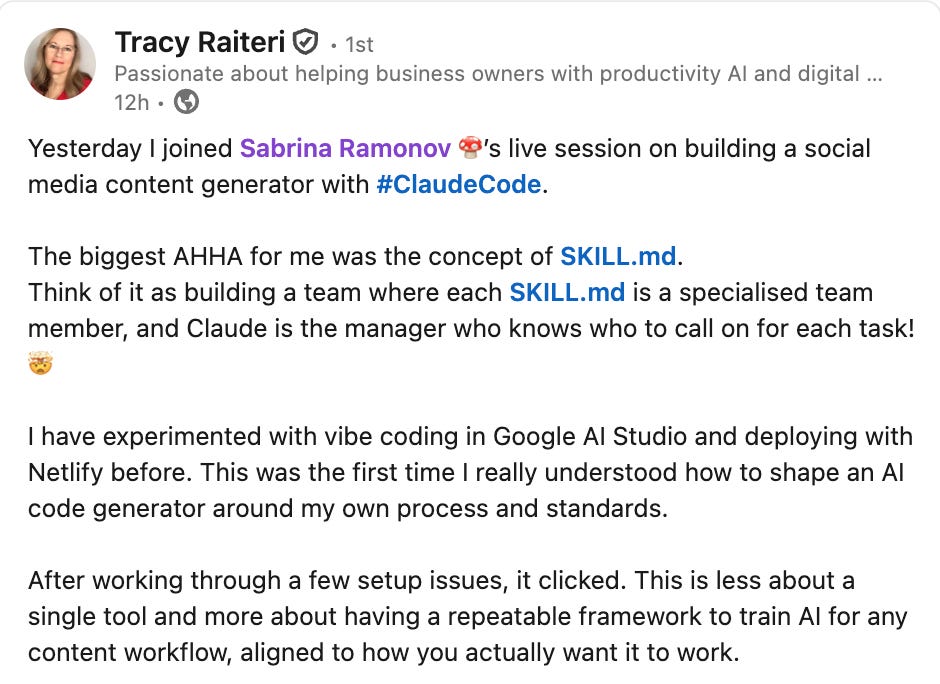
Thank you, this is priceless for me right now!
OMG Sabrina - the first thing I did is stop everything I was doing to add that prompt about "auto-editing" to my current project. THANK YOU...THANK YOU...THANK YOU!!!!
Claude has been driving me crazy - and nothing I tried or researched, including it telling it to batch process, trying to specify a section of work and authorize that - NOTHING WORKED - until this! The hours you have just saved me! Thank you just doesn't say enough for the sanity you have just given me back!