

In case you missed it:
Don’t miss 🎁 My 2 Million Followers Celebration Bundle
25% OFF Blotato (3 Months) - Use code: “2MILLION”
BONUS: 5,000 AI Credits ($30 Value)
BONUS: 5 Claude Content Skills (Pre-loaded)
I shared my Claude Cowork workflow with Hubspot’s Chief Marketing Officer, Kipp Bodnar, and people kept asking for the prompts!
So here they are, all 6 steps, in order, with the prompts.
Who this is for:
Creators and founders who want to scale content creation and marketing WITHOUT hiring a team. People who want high-quality human-in-the-loop AI content. I review every single post before it goes live. There’s the whole point!
Who this is NOT for:
If you want full automation without reviewing content quality (which I don’t recommend btw unless you’re very experienced).
Follow along here:
1. Build a “write-content” skill in YOUR voice
Most AI writing sounds like AI.
Generic. Polished. Forgettable.
The fix is dumb simple. Teach Claude to write like YOU before you ask it to write a single post.
Open Claude Cowork and run this exact prompt:
Create a “write-content” skill which writes social media posts in my brand voice about my business and personal brand. Interview me until you are 95% confident the outputs will reflect my brand.
Notice the last line. That’s the magic!
Claude will fire questions at you… What platforms do you create for? What are your content pillars? What sounds like you? What NEVER sounds like you? Do you share personal stuff? How do you end a post? etc.
It will ask for writing samples.
I HIGHLY SUGGEST taking this step seriously… you will save SO MUCH TIME not having to fix generic outputs later.
Paste your best-performing posts (or if you don’t have any, grab inspiration posts from your fave creators). The more raw material you give Claude, the better the skill gets.
When you’re done, Claude saves the whole thing as a reusable skill. Think of it like a custom GPT, but WAY more flexible because it lives inside Cowork with access to your files, your tools, and your full context.
Walk away with: “/write-content” skill dialed into your voice. ~3 hours of fine-tuning saves you FOREVER on every future post!
2. Open a new chat and write your first drafts
Now test it…
Start a fresh Cowork conversation, type /, and click “write-content”. When it lights up blue, the skill is active.
Here’s a simple prompt:
/write-content LinkedIn, Facebook, and Twitter post about the receipts image in my downloads folder
The receipts image is a screenshot of a Facebook analytics page showing 9M organic views in 2 months.
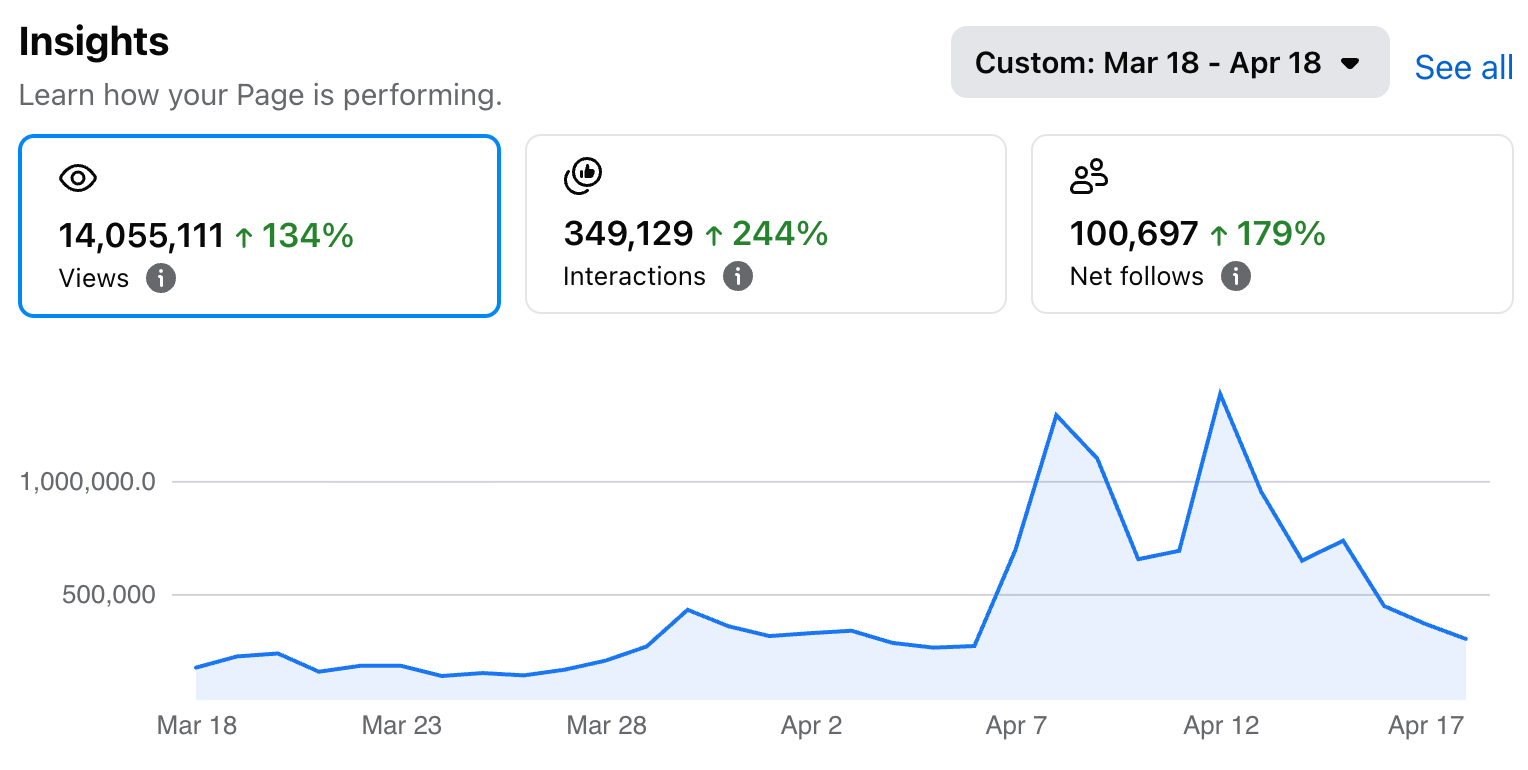
Claude found the file. Analyzed the screenshot. Pulled the numbers. Wrote 3 platform-specific drafts in my voice.
The LinkedIn post had my signature emoji at the end.
The Twitter post was short and punchy because of how I told the skill I prefer it.
This is where most people stop.
But don’t stop here!
Read every draft. If something sounds off, tell Claude WHY.
Then say:
Update the skill with everything we talked about.
This is how you finetune Claude continuously. Do this regularly and your skill gets sharper EVERY single time.
Walk away with: 3 platform-ready drafts in minutes, each one tuned to how YOU talk.
3. Connect Blotato to Claude Cowork
Now you need a way to generte the visuals and schedule the posts without leaving Claude.
Blotato handles both.
I built it for myself when I was drowning in content, trying to scale solo across multiple platforms. It now powers most of what you see me post.
Setup takes 60 seconds:
Sign up at blotato.com
Settings > API > generate an API key
Open Claude Cowork > Settings > Connectors > Custom Connector
Name:
BlotatoURL:
https://mcp.blotato.com/mcpClick Connect, approve OAuth, done!
Now Claude talks to Blotato directly. Same way it talks to Gmail, Google Drive, or HubSpot if you’ve connected those.
Walk away with: A live connection between Claude and Blotato. ~1 minute of setup unlocks insane automation capabilities.
4. Generate visual to match your social media post
Visuals stop the scroll.
A naked LinkedIn post gets 1/3 vs. a strong visual.
Run this prompt:
Use Blotato to create a visual to accompany our LinkedIn post. Let’s use the “whiteboard infographic” template.
Claude calls the Blotato MCP tool, picks the template, and kicks off generation.
Behind the scenes, Blotato will use Nano Banana 2, so the wait is usually a couple of minutes for an infographic.
When it’s ready, Claude drops a “Show image” link in the chat.
You’ll get a clean whiteboard-style infographic with charts, headlines, and a layout which looks like a designer made it.
This is the SAME template I used for a recent LinkedIn livestream announcement, and it pulled HUGE engagement!
Walk away with: A scroll-stopping LinkedIn-grade infographic to accompany your post.
5. Schedule posts to LinkedIn, Facebook, and Twitter
This is the part which USED to take me hours every week.
Now it takes ONE prompt.
Schedule all 3 posts 10 minutes from now.
LinkedIn gets the infographic.
Facebook gets the receipts screenshot.
Twitter posts text only.
This single line tells Claude:
WHICH platforms (LinkedIn, Facebook, Twitter)
WHICH media for each (different visuals, as an example)
WHEN to publish (10 min from now, but you might say “next Tuesday at 9am MST” or “spread across the next 3 days”)
Claude calls Blotato.
Blotato schedules each post with the right asset.
You can also reschedule on the fly. Say something pops up and you want to bump everything 2 days. Simply tell Claude in plain english.
NO clicking calendars, NO drag-and-drop, NO juggling.
Walk away with: 3 platforms scheduled in seconds. ~15 hours/week saved over manual scheduling.
6. Confirm everything in your calendar
Trust but verify!
This has always been a good motto…
Check your calendar here: https://my.blotato.com/queue/schedules
You can also ask Claude: “What posts do I have scheduled?”
You’ll see all 3 posts lined up. Each one shows the platform, the time, the caption, and the attached media.
If something looks wrong, edit it right there. Or tell Claude:
Delete those 3 posts I scheduled, I want to revise them.
Done. Claude calls Blotato, removes them, and you’re back to draft mode.
After a few days of this, you’ll NEVER GO BACK to manual content creation without AI.
My honest take
This workflow saves me 15+ hours every week.
But the REAL win is quality control.
I still read every single post before it goes out.
My personal brand is too important to hand off.
What Claude + Blotato do is collapse the boring tedious parts.
What’s left is the part which matters - ideas, editing, reviewing, iterating, sharpening.
This is the RIGHT way to use AI as a content creator.
Don’t miss 🎁 My 2 Million Celebration Bundle
Celebrating my recent milestone of 2 million followers across social media, here’s a gift for you:
25% OFF Blotato (3 Months) - Use code: “2MILLION”
BONUS: 5,000 AI Credits ($30 Value)
BONUS: 5 Claude Content Skills (Pre-loaded)
Claim Bundle & Use Code “2MILLION”
Which step are you setting up first?
P.S. Need More Help? 👋
1/ Free AI courses
2/ Free AI prompts
3/ Free AI automations
4/ Free AI vibe coding
5/ Ask me anything @ Friday livestream
6/ Free private community for Women Building AI
7/ I built Blotato to grow 1M+ followers in 1 year
Always the best Sabrina!
Hi how do I cancel my blotato account before payment goes off?