

Learn how to use AI to make amazing videos like this:
(educational explainer video about my fave tea, gyokuro)
TLDR… HeyGen HyperFrames is a free, open-source tool that turns a plain-English prompt into a real video. You describe the video, an AI coding agent like Claude Code writes it as a website, and your own computer turns it into a video file. HyperFrames itself is free. You just need an AI agent, like Claude or Codex, to run it.
In case you missed it:
You want a short video.
A product intro, a website explainer, an educational short.
The old way?
Open a video editor. Drag clips on a timeline. Fiddle with it for 2 hours.
Now there’s a free tool that flips this.
It’s called HyperFrames.
You describe your video in plain English. AI makes it for you. You get a real video.
This used to be pretty technical to set up.
But NOT anymore!!
You tell Claude Code to install it, and Claude does all the work.
If you’ve used Claude before, you can do this IN MINUTES!
What you need before you start:
A Mac or Windows computer.
Claude Code. This is the hands-on version of Claude that works on files in a folder, not the chat window. It needs the Claude Pro plan ($20/month), which includes Claude Code. New to it? Watch my install tutorial first: How to Install Claude Code.
1. Set It Up
First, what IS HyperFrames?
Think of a video as a website.
Text, images, a logo, some motion. That’s a website with animation.
HyperFrames takes that website and records it, frame by frame, into a video.
A traditional video editor makes YOU move every clip. HyperFrames lets you describe the whole thing in a sentence, and AI does the rest.
You stop dragging clips on a timeline.
You start describing the video you want.
The setup is 3 simple steps.
Do this once.
Step 1: Make a new empty folder on your computer. Name it something like “my-videos”. (On a Mac, right-click your desktop and pick “New Folder”. Same idea on Windows.)
Step 2: Open Claude Code in that folder. 2 ways, pick one:
Easiest for most people: open the Claude desktop app, click the “Code” tab, then click “Select folder” and pick the folder you just made.
Terminal: open the Terminal app, go to your folder, and run
claude. (On a Mac: typecdwith a space, then drag your folder onto the Terminal window and press enter.)
Both run the same Claude Code. The desktop app is the easy path for your first videos. The terminal is more reliable for the big, long, complex editing tasks.
Step 3: Type this into Claude and hit enter:
install hyperframes video editorThat’s the whole setup.
Claude installs HyperFrames for you.
If it asks to install “homebrew” and “ffmpeg” - both are fine, you can say YES.
If the command didn’t work, you can open a Terminal and run:
npx skills add heygen-com/hyperframes2. Beginner Prompt
Now we’ll make your first video, which will look like this:
Here’s the prompt:
Create an 8-second landscape video explaining the health benefits of sleep, and choose one strong animated visual metaphor that makes the idea instantly understandable.
Keep it fast to render.
Claude creates a plan and builds the video. Give it a few minutes. Mine finished in about 5, so if it’s still working, it’s not stuck.
Want to watch it?
Type in Claude:
launch previewIt opens the HyperFrames preview studio in your browser.
If you’re in Claude Desktop, you can also click the link to see the video play.
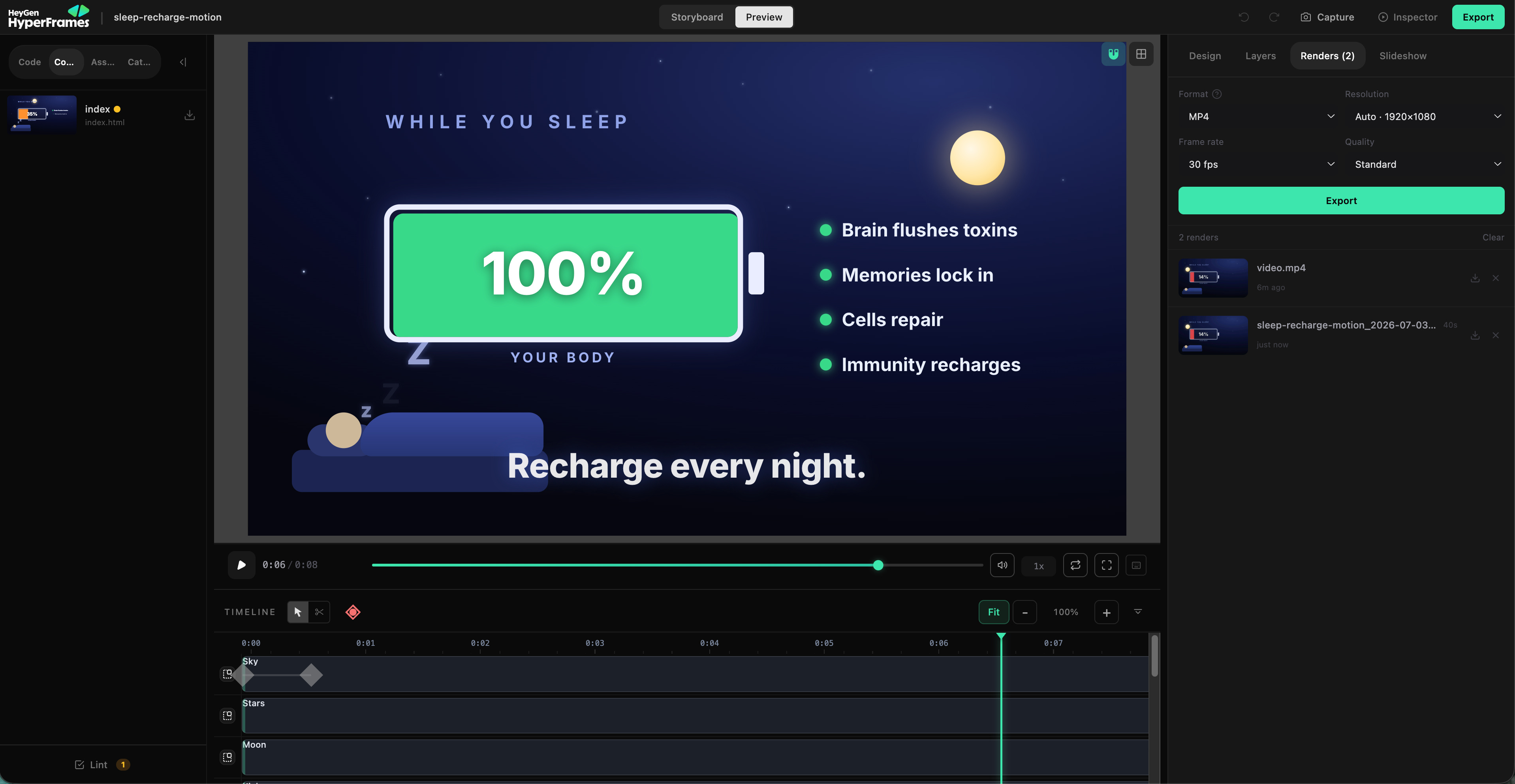
Here’s what the studio looks like with that exact sleep video. Notice the battery at 100%, that’s the visual metaphor for recharging your body:
Happy with it?
Tell Claude “save it as a video”, or click EXPORT in the preview.
It drops a finished video file into your folder.
Now you have a real video, made from 2 simple sentences.
3. Beginner-Intermediate Prompt
Now that you’ve made 1 video, let’s write better prompts.
A vague prompt gives you a vague video. Good HyperFrames prompts have 3 parts:
The source: a website link, a topic, or a script. What’s the video ABOUT?
The length: how many seconds. “15 seconds”, “30 seconds”, “1 minute”.
The vibe: the feeling. “Bold and cinematic”, “clean and minimal”, “warm”, “dark and techy”.
This next prompt is the same simple idea as the sleep video, with way more pizzazz. Here’s the video we’ll make:
It uses the faceless-explainer workflow. If Claude doesn’t have it yet, it offers to install it, say yes.
Using hyperframes and /faceless-explainer, create a 30-second faceless explainer about the health benefits of gyokuro tea. Do not make it educational-looking. Make it feel like the opening sequence of a high-budget Netflix investigation: dark cinematic typography, mysterious animated diagrams, fast evidence-board transitions, one shocking hook in the first 3 seconds, and a satisfying “now I finally get it” visual metaphor by the end.
4. Intermediate Prompt
Let’s take it one step further…
Now, point Claude at a real website, and it builds the video from the website’s colors, fonts, and screens.
AI visits the page and build the video to MATCH your brand.
Here’s a fairly polished branded video after I gave it my website:
This one uses the website-to-video workflow. If Claude doesn’t have it yet, say yes when it offers to install it. Here’s the prompt:
Using hyperframes and /website-to-video, create a 25-second cinematic product launch video from blotato.com. Capture the website’s actual colors, typography, UI, and brand feel, then turn it into a premium Apple-keynote-style reveal with dramatic pacing, animated UI zooms, 3 big benefit cards, clean voiceover, subtle sound effects, and a final CTA. Make it feel like this tiny website is announcing the future.
5. Next Level Prompt
This is the deep end, and it’s the one that blew me away!
It turns a plain talking-head video into a polished final edit.
Point Claude at a plain talking-head video (you talking to camera). This 1 prompt cleans up the recording AND turns it into a fully animated edit. Cards, captions, visual metaphors, the works.
This Youtube video was fully edited by HyperFrames:
You do NOT need to understand every line. Copy it, give Claude your video, and watch what it does. If Claude asks to add a workflow for this, say yes.
Here’s the next level prompt:
Turn a talking-head explainer into a designed motion-graphics edit. Transcribe for word-level timing, then clean the take first: cut false starts, stutters, repeats, and filler, and trim pauses over 0.3s, all transcript-located, seamless, audio + video together. Split the cleaned script into concept beats; for each concept invent the strongest visual metaphor (object, mechanism, diagram, comparison) that makes it instantly legible. No bullet lists or icon rows; vary the forms beat to beat.
One visual system throughout:
Palette (light, blue): soft white radial-gradient bg (#ffffff→#f4f6fb→#e8edf7) with faint blue blobs; accent #2563eb, secondary #38bdf8, ink #0f172a, muted #64748b, cards #fff.
Type: bold grotesque (Archivo/Sora) 800-900 for headlines/numbers, clean sans (Inter/Outfit) for body; only the emphasized keyword is blue.
Motion: white cards (~22px radius, soft shadow) that rise + fade in and settle, no jitter. One paused, seek-safe GSAP timeline; 1920×1080@30.
3 graphic roles: (a) full-frame opaque cards replacing the face, showing metaphors, quotes, comparisons, steps, titles; (b) transparent overlays over the face, like a blue “pill” keyword pop, lower-thirds, captions; (c) one recurring spine motif for the video’s throughline that returns at each section marker and pays off at the climax.
Sync: align each graphic to its spoken line, cut to a card as the concept lands, return to the presenter between sections. Hold settled cards for their beat; keep pops brief. Output one MP4 at the source aspect ratio.
Now hold up, let’s be realistic…
This is NOT a magical slot machine where 1 prompt gives you a perfect video every time.
The AI gets you 80% there. You still preview it, spot awkward things to be fixed, and ask AI to iterate. That last 20% is you.
The good news: the more you invest in teaching HyperFrames your visual preferences and editing style, the more consistent the results will be!
Highly suggest spending a couple hours playing around with it :)
6. Take Control of the Whole Video
Most importantly:
HyperFrames doesn’t just hand you a finished video and hide how it got there.
It shows its work.
And you can EDIT any part.
The AI always runs through 7 steps.
Each step leaves you a text file you can open and tweak:
Capture: it grabs your website’s look (colors, fonts, images).
Design: it writes a
DESIGN.mdfile… your brand rules for the video.Script: it writes the narration into a
SCRIPT.mdfile.Storyboard: it plans each scene in a
STORYBOARD.mdfile.Voiceover: it makes the narration audio and lines up the timing.
Build: it writes the actual video scenes.
Validate: it checks each scene looks right before finishing.
You don’t have to touch any of these… but when 1 scene feels off, you don’t re-roll the whole video.
Just open STORYBOARD.md, change that ONE scene (make it slower, swap the mood, change the words), and tell Claude to rebuild just that scene.
The magic isn’t “1 perfect prompt.”
It’s that every piece is a plain file you can open and fix.
That’s the difference between a black box and a tool you control.
Try this. Edit 1 scene by hand.
Make a short video, open STORYBOARD.md, change 1 scene’s words or mood, and re-create just that scene.
7. Import Extra Workflows
What you installed is the general-purpose HyperFrames. It can make any video.
But it also has OPTIONAL “workflow” skills. Each one is a recipe for a specific kind of video.
Think of them like add-ons. You import the one that matches what you’re making, and it already knows the best steps for that job.
The ones worth grabbing:
/product-launch-video: a product link or brief turns into a launch or promo video.
/website-to-video: any website turns into a tour or a short social clip.
/faceless-explainer: plain text with no link turns into a faceless explainer, narration included.
/embedded-captions: takes a talking-head clip you already have and adds captions.
/talking-head-recut: takes your talking-head clip and dresses it up with title cards and name banners.
/motion-graphics: a short, no-voice animation… a logo, moving text, a stat.
/music-to-video: a music track turns into a beat-synced video.
/slideshow: builds a slideshow-style video.
There are 2 more for developers (/pr-to-video for GitHub code changes and /remotion-to-hyperframes for porting remotion videos). Skip those if not relevant.
How to import them. Easiest way, same as before: just tell Claude.
Type `install all the hyperframes workflows`.
Claude grabs them all.
After that, just describe your video and Claude routes it to the most appropriate workflow.
8. Using HyperFrames in Codex or Antigravity
Not on Claude Code?
HyperFrames isn’t locked to it. The same tool works in other AI coding agents, including Codex and Google Antigravity.
Setup is identical: make a folder, open your agent in it, and install HyperFrames the same way. Tell your agent “install hyperframes”, or run npx skills add heygen-com/hyperframes yourself.
Only the trigger changes a little:
Codex: start your message with
/hyperframes, then describe the video. Like “/hyperframes make a 15-second product intro, bold and cinematic.”Google Antigravity: no command needed. Just describe the video in the agent sidebar, and Antigravity loads HyperFrames on its own. Name a workflow (like /faceless-explainer) when you want to be exact.
It also runs in Cursor, Gemini CLI, and GitHub Copilot CLI, same install.
Everything else in this guide works the same, the prompts, the preview, the save.
Totally fine to use the AI agent you already have.
RECAP
Set it up once. Make a folder, start Claude Code, type “install hyperframes”. Claude does the rest. It’s a 1-time thing.
Describe your video. Source plus length plus vibe. A link, “25 seconds”, “bold and cinematic”. The AI builds it, you preview it and get a real video.
Take control. Every scene is a plain file. Open the storyboard, fix 1 scene, rebuild. No black box.
Once you’ve set this up, you can make unlimited on-brand videos from a sentence, on your own computer, essentially for free.
No timeline.
No credits.
No accounts (except your normal Claude or Codex).
HyperFrames isn’t a video editor you learn.
It’s a video team you speak to.
FAQ
What is HeyGen HyperFrames in simple terms?
It’s a free, open-source tool that turns a plain-English prompt into a real video. You describe the video, an AI coding agent writes it as an animated website, and your computer turns it into a video file, right on your own machine.
Is HyperFrames free? Does it use HeyGen credits?
HyperFrames itself is free and open-source, and it runs on your own computer, so it uses no HeyGen credits. Credits only come into play if you connect it to HeyGen’s cloud avatar engine, which is a separate, advanced step.
Do I need a HeyGen account to use HyperFrames?
No. The tool runs locally on your machine. You only need a HeyGen account if you later want to add talking AI avatars from HeyGen’s cloud.
What do I need to install before I start?
Almost nothing by hand. You need Claude Code, the hands-on version of Claude. Make a new folder, start Claude in it, and type “install hyperframes”. Claude installs the rest and tells you if it needs a free helper like FFmpeg.
Do I need to know how to code?
No. You use Claude Code and type plain English, like “install hyperframes” and then a description of your video. Claude runs any commands and writes all the video code for you.
What does a good HyperFrames prompt look like?
Include 3 things: the source (a website link or topic), the length (like “25 seconds”), and the vibe (like “bold, cinematic, dark theme”). Example: “Create a 25-second product launch video from https://yoursite.com. Bold, cinematic, dark theme energy.”
P.S. Need More Help? 👋
1/ Free AI courses
2/ Free AI prompts
3/ Free AI automations
4/ Free AI vibe coding
5/ Ask me anything @ Friday livestream
6/ Free private community for Women Building AI
7/ I built Blotato to grow 1M+ followers in 1 year
👌🏻
It's amazing. I'm a a stock contributor part time. I use GenAI for content creation.
Hyperframes can work for stock work? Also, we can use it for social media monetization including YouTube right? If we want it to insert our visuals into a video, it'll do it? like certain clips, images, and editing style. Like a faceless YouTube channel does